
- When you enter a course, you will see the course organization by course, units, lessons, and activities on the left side of the page.
-
Click on the expand/collapse icon located beside the course, units, and lessons to organize the course content allowing you to see only what you want to see.
-
Within the Units/Lessons, you will see all learning activities.
-
As a teacher, you have the ability to publish or not publish course content. Click on the toggles located on the top right side of the course, unit, or activity. This will allow you to publish or not publish different parts of the course giving you the control to show/release course work you wish the students to access.
-
To access a particular activity, click on the desired activity you wish to see. This could be a lesson, an assessment, an assignment, or resources that are inside of the course.
-
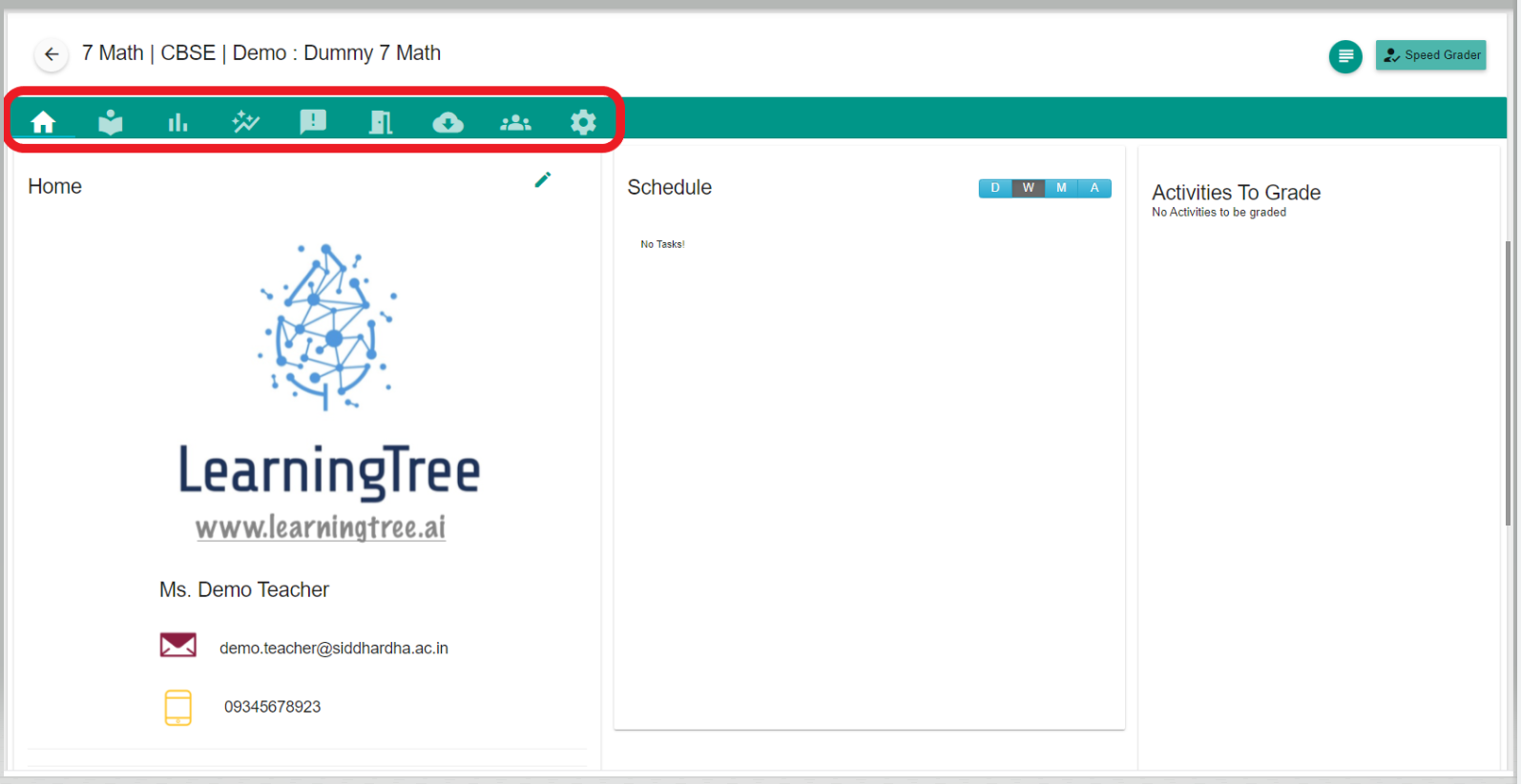
At the top of the course page, the teacher has access to various tabs to do different functions within the course.
-
Learning—The Learning Tab is the default tab that shows the course organization and all relevant units, lessons, and activities.
-
Announcements—The Announcements Tab allows you to post any general announcements relevant to the course that all students will see.
- Meetings - The Meetings tab allows you to set up meetings with the students to discuss more details about the course.
-
Documents—The Documents tab allows you to post any general documents that can be accessed by members of the course.
-
Members—The members tab gives you access to all of the students giving them the ability to view individual student profiles and learning data.
-
Progress—The Progress tab gives you the ability to view the progress of the students across the course.
-
Report Card—The Report card tab gives you access to the results of the assignments, quizzes or any discussions that are scored for a student.
- Settings - This tab allows you to personalize the tabs that can or cannot be shown to the students in the course.
-
Comments
0 comments
Please sign in to leave a comment.