
The “Learning” icon will bring you into the course outline where you can review and work on course content assigned to you.
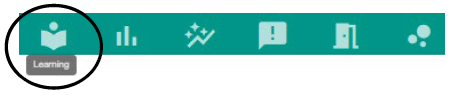
Once your course outline screen opens, you will see numbered circles that represent each section of your course. You can click through each section to preview or click the “all” circle at the end to view the entire course’s content.

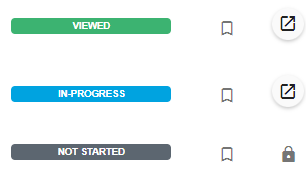
When viewing the course content, you can see the status of that activity such as “viewed” “in-progress” and “not started.” You can also bookmark an activity, launch, or see if an activity is currently locked by your teacher.
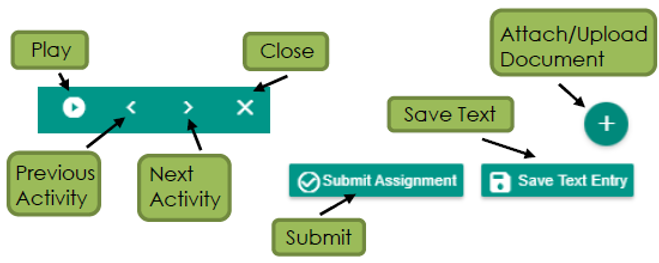
Once you ‘launch’ an activity, you’ll be taken into a pop-up window to complete the work. There are several navigation options and tools within the activity window.
Comments
0 comments
Please sign in to leave a comment.